Connect your projector to your smartphone: A simple guide for wired & wireless methods
August 21, 2025
Content from the small smartphone display onto agiant screento project, transforms your living room into an impressive home theater that surpasses traditional TVs in many aspects (see also our comparison:Projector or TVBut how exactly do you establish the connection? The process is simpler than many think.
Whether you are seeking the maximum image quality of a wired connection or prefer the flexible freedom of a wireless solution, this guide will lead you step by step to your goal. We explain the technical basics, present the best methods for Android and iPhone, and help you quickly resolve common issues.
Before you start: A quick 2-minute checklist
Good preparation saves you time and potential frustration. Check these three points before purchasing cables or adapters.
Check connections: What ports does your phone have, and what does the projector offer?
Take a quick look at the ports on your devices. Most modern smartphones use one of two standards:
- USB-C: The oval, symmetrical port. Standard on all current Android devices and on iPhones starting from iPhone 15.
- Lightning: The smaller, also symmetrical connector for iPhones up to and including model 14.
Your projector will most likely have one or more HDMI ports as input. This is the current standard for transmitting video and audio.
The most important question: Does your phone support video output via USB-C?
This is the most critical point for a wired connection with many Android devices. Not every USB-C port can output a video signal. The required function for this is called DisplayPort Alternate Mode. While most high-end smartphones have this feature, it is missing on many mid-range and entry-level devices.
How to check: Visit the official website of the manufacturer and look up the technical specifications for your smartphone model. If "DisplayPort Alternate Mode" or "video output via USB-C" is listed, you are good to go.
Select the correct source on the projector
A commonly overlooked step: The projector needs to know which input to receive the signal from. To do this, press the button labeled "Source," "Input," or a symbol with a rectangle and an arrow on your projector remote. Then select the correct HDMI input (e.g., "HDMI 1" or "HDMI 2").
Method 1: Wired Connection – Maximum Quality and Stability
For the best possible picture and sound quality without delays or stuttering, a cable connection is the first choice. This is the ideal method for movie enthusiasts and dedicated gamers.
For Android & new iPhones (from iPhone 15): Connection via USB-C to HDMI
If your smartphone supports video output via USB-C, connecting is straightforward. You only need a USB-C to HDMI cable or a suitable adapter.
- Connect the USB-C end of the cable to your smartphone.
- Insert the HDMI end into an available HDMI input on your projector.
- Select the correct input source on the projector. The content from your phone should now automatically appear on the screen.
Expert tip: Use a high-quality cable to ensure full 4K UHD resolution and support for modern standards such as HDR. The difference in image dynamics is significant, as ourComparison of SDR vs. HDRshows in detail.
For older iPhones (up to iPhone 14): The Lightning to Digital AV Adapter
For iPhones with a Lightning port, you need the Apple Lightning to Digital AV Adapter.
- Plug the adapter into the Lightning port of your iPhone.
- Connect a standard HDMI cable to the adapter and the projector.
- Select the HDMI source on the projector.
Expert tip: We recommend using the official Apple adapter. Cheaper replicas may cause issues when transmitting copy-protected content from streaming services such as Netflix and may stop working after an iOS update. The original adapter also features an additional Lightning port, allowing you to charge your iPhone while playing content.
Method 2: Wireless connection – freedom without cable clutter
If flexibility and a clean appearance are priorities, wireless transmission is the right choice.
Important to know: The difference between mirroring and casting
- Screen mirroring: This feature duplicates the entire content of your smartphone screen in real time onto the projector, exactly as it appears. Every app, every notification—everything is displayed. This can drain your phone’s battery.
- Casting: This is the smarter method. An app (e.g. YouTube) only sends the link to the video to a receiving device (e.g. a Chromecast). This device then streams the content independently from the internet. Your phone simply acts as a remote control and can be used for other tasks or locked.
For Apple users: AirPlay explained simply
AirPlay is Apple's protocol for wireless transmission. You need a projector with native AirPlay support or an Apple TV box connected to the projector.
- Make sure your iPhone and the projector/Apple TV are connected to the same Wi-Fi network.
- Open the Control Center on your iPhone (swipe down from the top right corner).
- Tap the screen mirroring icon (two overlapping rectangles) and select your device from the list.
For Android users: Miracast and Google Chromecast
Most modern projectors support the Miracast mirroring standard.
- Activate the "Screen Mirroring" or "Wireless Projection" function on your projector.
- Open the quick settings on your Android phone (swipe down from the top of the screen).
- Look for the "Screen Mirroring," "Smart View," or "Cast" function and tap on it. Select your projector from the list of available devices.
For casting content, a Google Chromecast dongle connected to the projector's HDMI port is an excellent and affordable solution.
A premium experience with a modern 4K laser projector
ModernUltra-short throw projectorlike theAWOL Aetherion MaxandProare optimized for such applications. With multiple HDMI 2.1 ports, connecting cables or streaming sticks is effortless. In addition, advanced image processing ensures that the signal from your smartphone is displayed on the screen in brilliant 4K quality with lifelike colors – which raises the question of whethera 4K projector is worth it, clearly answered. This ensures that the high quality of your smartphone content is not lost on its way to the screen.
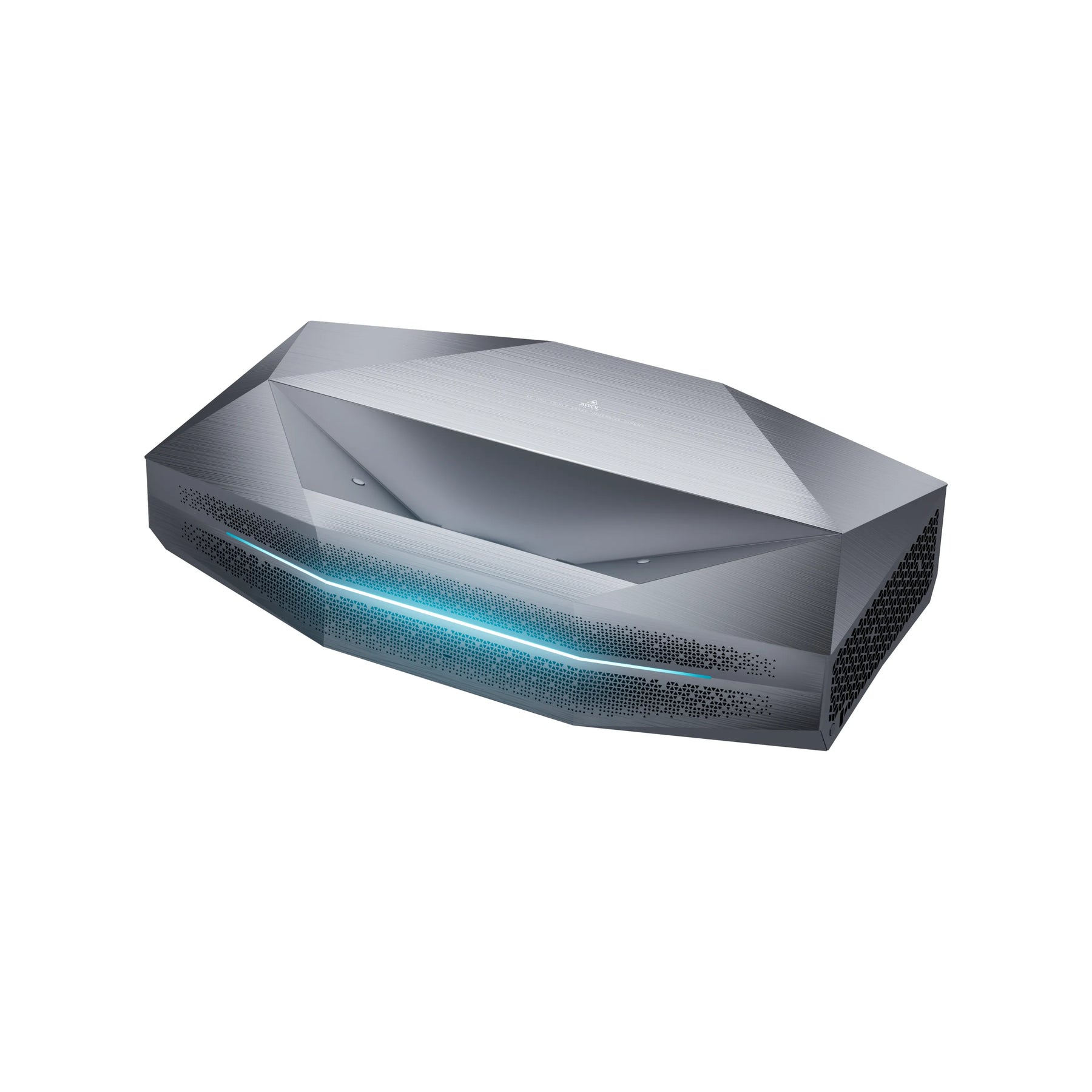
Aetherion Max 4K RGB ultra-short throw projector €3,699.00 €3,999.00 4K up to 200 inch 3300 ISO lumens 6000:1 contrast PixelLock™ Anti-RBE 2D/3D 110% Rec.2020 VRR + 1 msPre-order
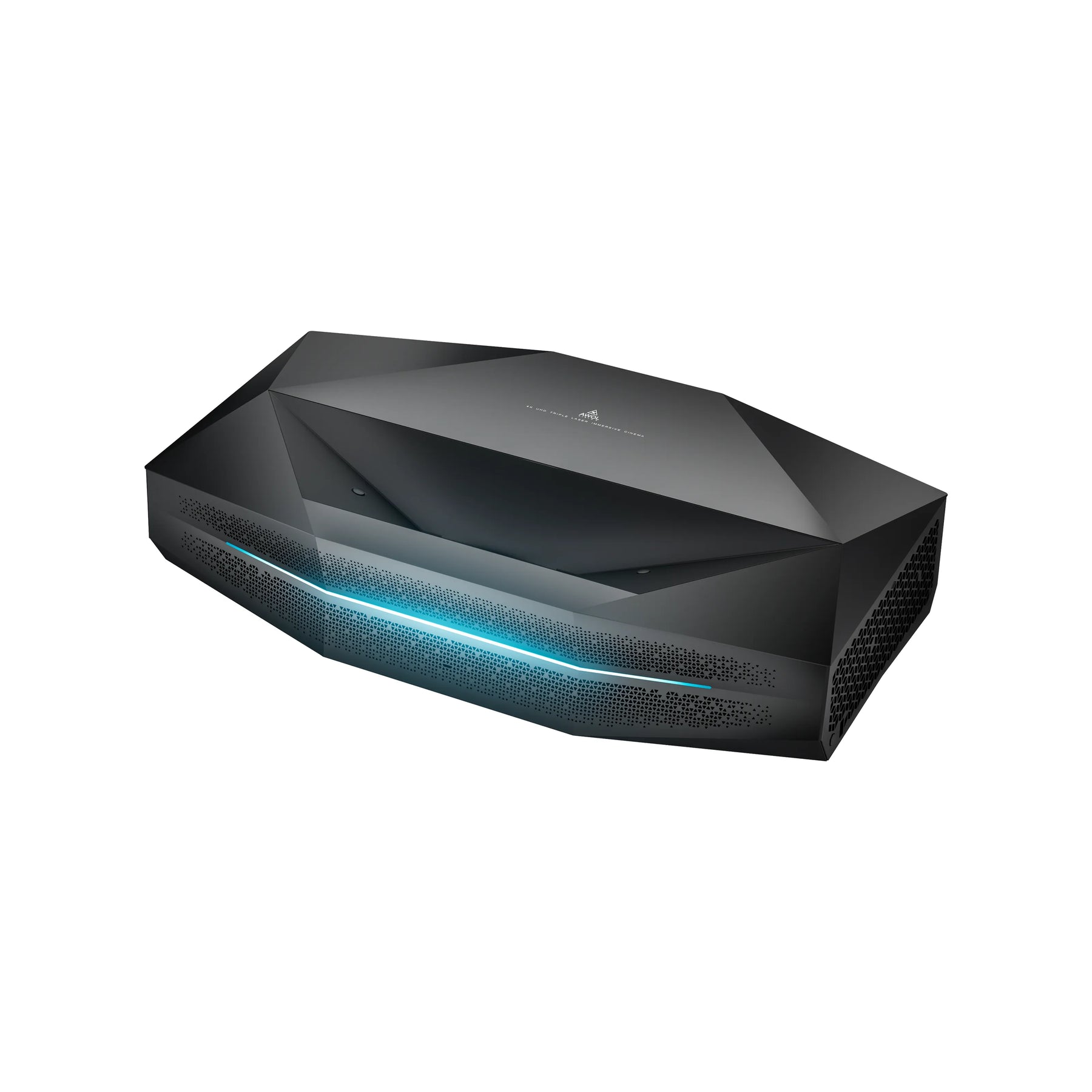
Aetherion Pro 4K RGB ultra-short throw projector €2,799.00 4K up to 200 inch 2600 ISO lumens 6000:1 contrast PixelLock™ Anti-RBE 2D/3D 110% Rec.2020 VRR + 1 msPre-order
Conclusion: Wired or wireless – the choice is yours for your perfect large-screen experience
The connection between your smartphone and the projector is straightforward if you choose the right method for your needs. Once the connection is established, you can move on to the next step and select the option that suits you.Calculate the perfect screen size.
Let's summarize:
- Wired connection: The best choice for gamers and film enthusiasts, offering maximum quality and zero latency.
- Wireless connectivity: Perfect for spontaneous presentations, quickly sharing vacation photos, and a clean, cable-free setup.
With the knowledge from this guide, you are now well equipped to confidently project content from your smartphone onto the big screen.
Discover More Insights